
Introduction
A Sales Order represents the movement of product out of the ownership of your organization. This could be a beneficiary distribution or a customer sale. A Sales Order results in the movement of inventory out of your source warehouse.
The article describes how to create a Sales Order in TaroWorks Enterprise.
A. Create a Sales Order
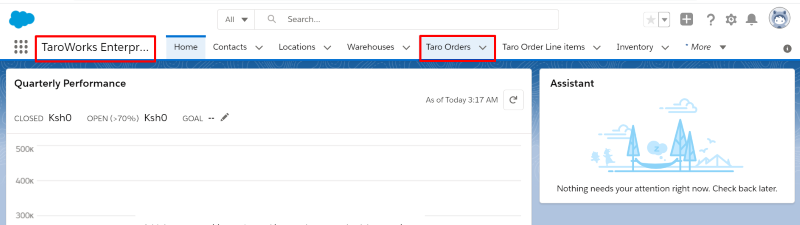
- Click on the Taro Orders tab from the TaroWorks Enteprise Application
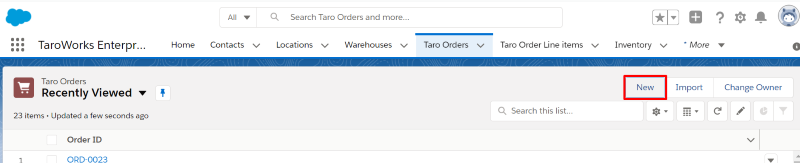
- Click New
- Select the Sales Order record type and click Next

- Fill in the details of the order (an example is shown below)
Field Value Date of Order Date Order is being made Status Select Draft Source Location The location where the Source Warehouse is Located Source Warehouse The Source Warehouse Expected Delivery Date The date that delivery of the order is expected Customer Select the Customer of the sale Pricebook Select the pricebook to be used in the order Record Shipment Select Yes if you want the transit of the order to be tracked 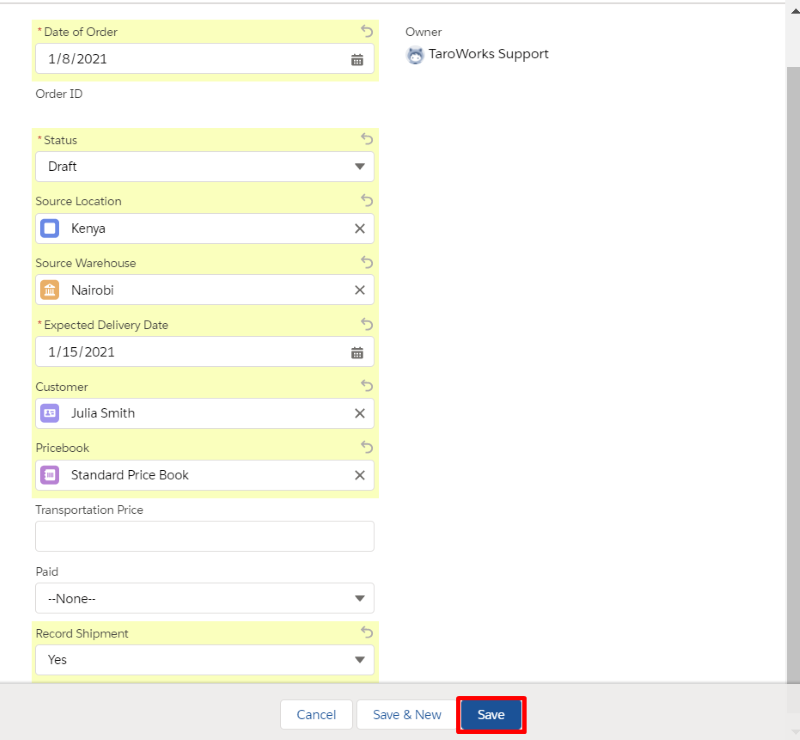
- Click Save.
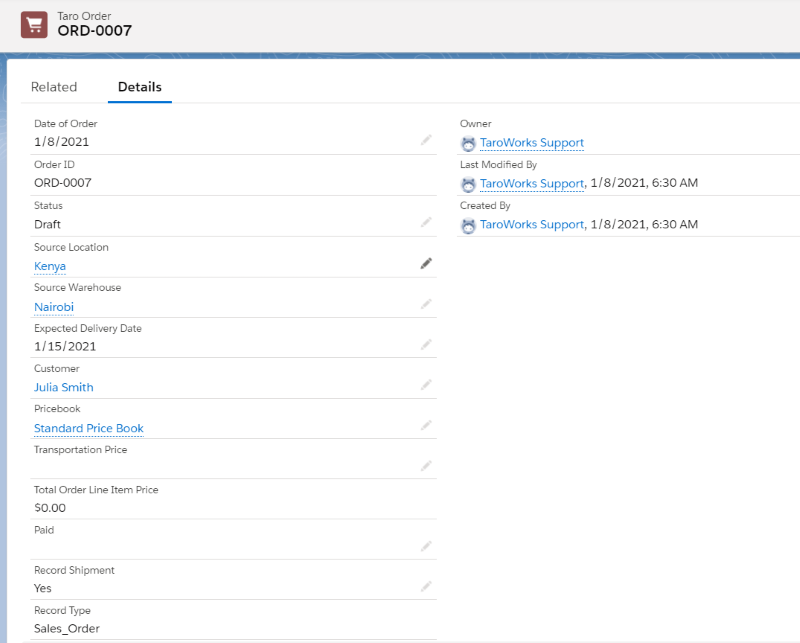
B. Adding Taro Order Line Items
- From the Taro Order click on Related.
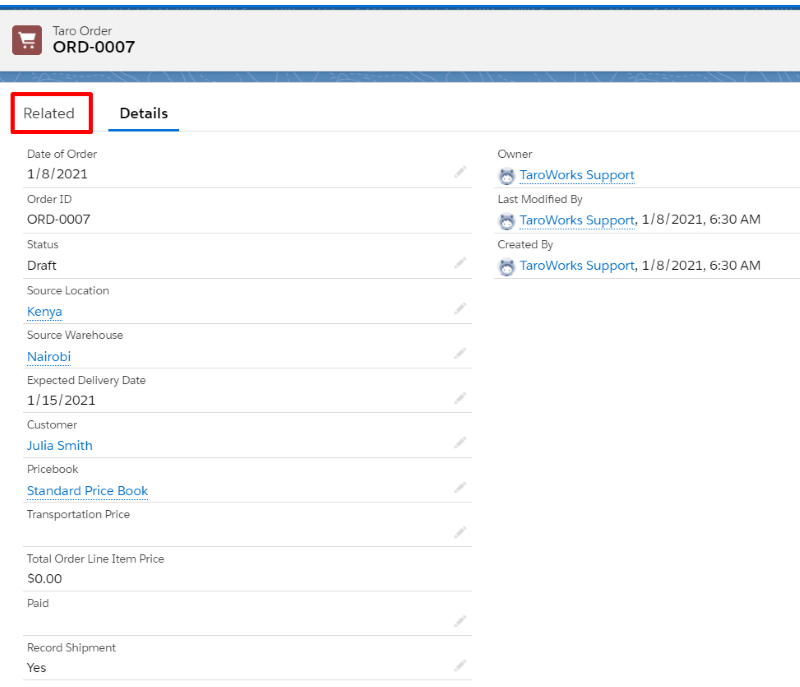
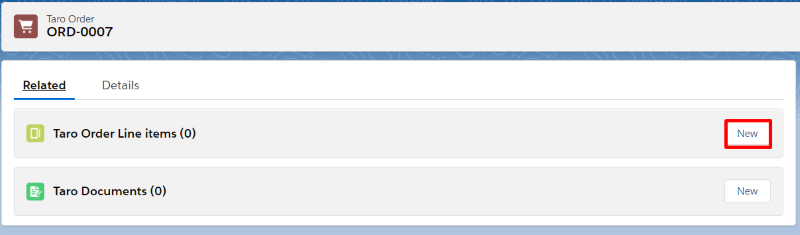
- Click New next to Taro Order Line Items
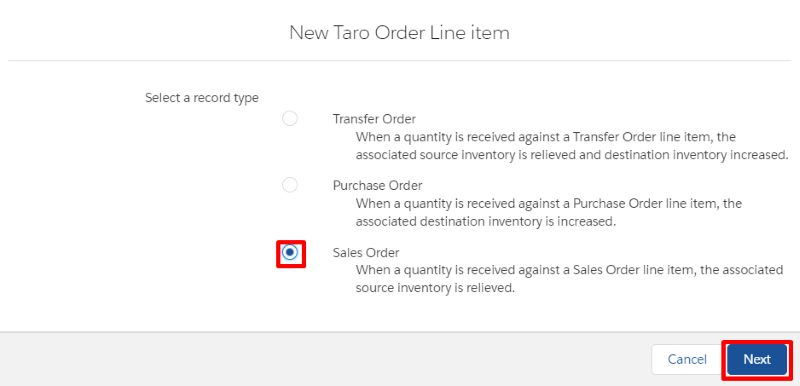
- Select the Sales Order record type and click Nex
- Fill in the details of the Taro Order Line Item
Field Value Status Select Draft Product The line item's Product Qty Ordered The Quantity of this Product Unit Price The price that the product will be sold at per unit 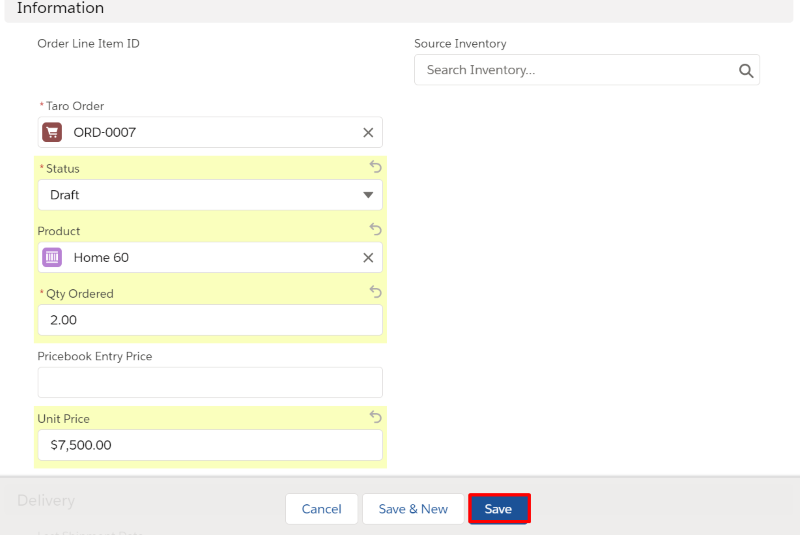
- Click Save.
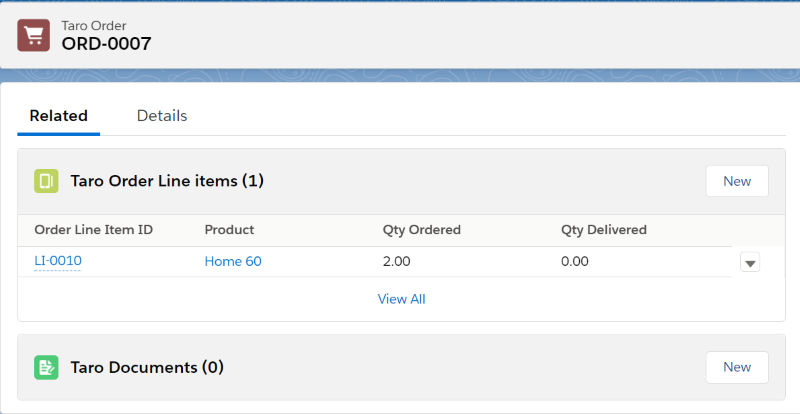
- To add more Taro Order Line Items to this Taro Order, repeat steps 2-5
Comments
0 comments
Please sign in to leave a comment.