
If a Job has been auto-closed and therefore removed from the mobile user's Jobs menu, and the mobile user had completed Jobs that could not be synced into Salesforce, the mobile user will continue to receive the error message for that Job upon syncing - even though they can no longer access that Job through the menus.
If you clear local app data, TaroWorks will behave as if this is the first time the mobile user has ever logged into the app. This means that before resetting the app, the mobile user should have their Community Site URL, username and password ready. This also means that any Jobs still on the device and not in Salesforce will be lost, so users should not take these steps without the instruction of their TaroWorks Administrator. The administrator may want to requests Backups of the data prior to the mobile user clearing the app.
To clear local app data, thereby resetting the app, please take the following steps:
- Complete any in-progress Jobs.
- Sync so that all Jobs marked complete (without errors) sync into Salesforce.
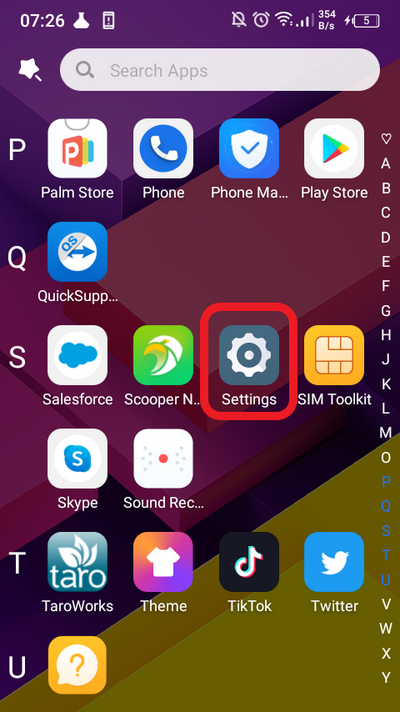
- On the device, go to the Settings App.
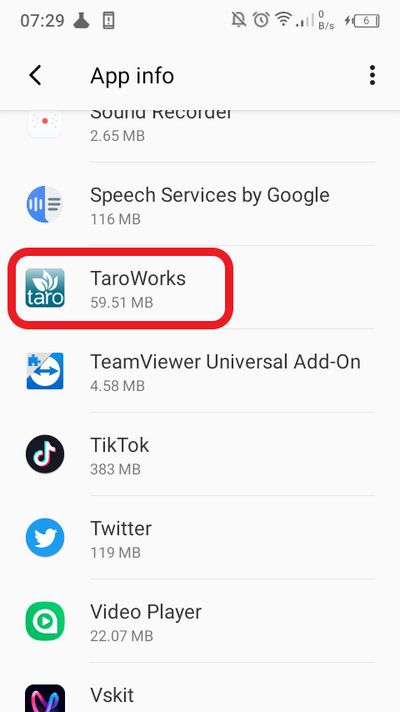
- Click Apps.

- Click TaroWorks.
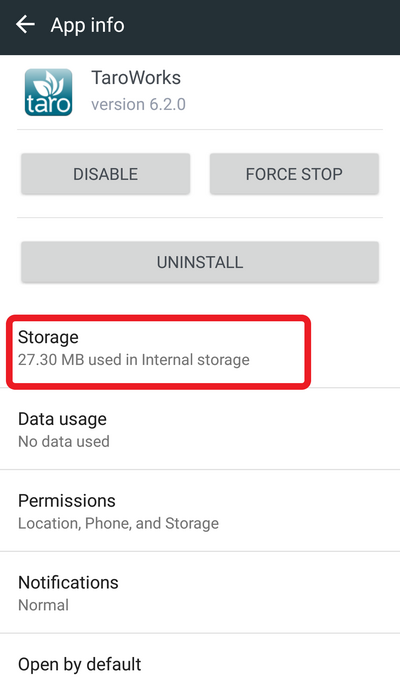
- Click Storage.
- Click Manage Storage.
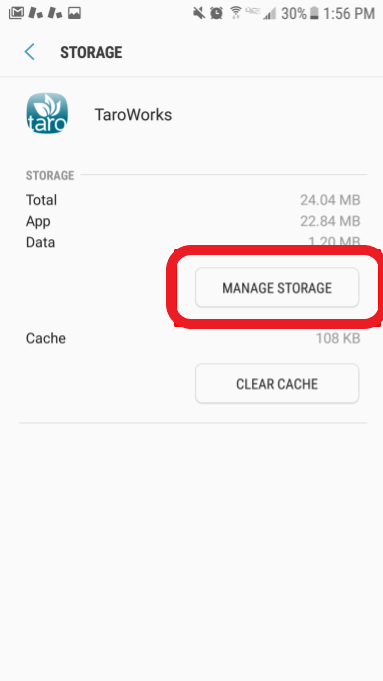
- Click Continue.
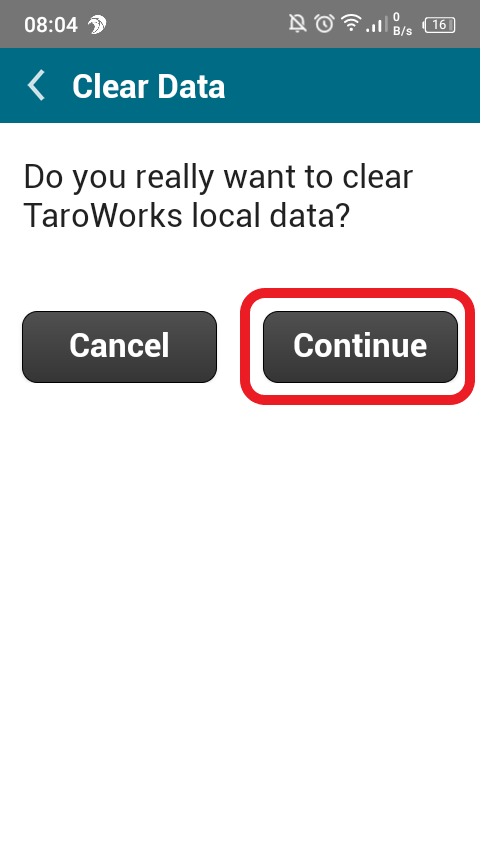
- Log back into TaroWorks.
Comments
0 comments
Please sign in to leave a comment.