
Introduction
A log file is a file that records mobile user activity that occurs in the TaroWorks mobile application for the purposes of troubleshooting. In order for logs to be created they need to be enabled. A typical log file will contain device information and any errors that may appear on mobile device when interacting with TaroWorks.
Backups contain logs of activity from the application as well as a backup copy of Form instances on the device. Backups can be decrypted by the TaroWorks Support team in order to access data that cannot be synced into Salesforce.
- A. How To Send Logs- logs of mobile user activity
- B. How To Send Backups- copies of Forms instances
- C. How To Send Large Backups- copies of Form instances that are greater than 25 MB
A. How To Send Logs
- On your TaroWorks App, click Settings.
- Click Logs.
- Click Send Logs.
- Select the preferred application for sending the file. (Example: Gmail)
- Enter a detailed description of what you were doing when you encountered the issue, and send the logs.
B. How To Send Backups
- From TaroWorks home page, click Settings.

- Click Logs.

- Click Send Backups.

- Select the method for sending the file.
Note: There are a few ways to send a file but we recommend four ways: By email, Google Drive, Dropbox or WeTransfer.
Select the preferred application for sending the file. (Example: Gmail)
- Enter a detailed description of what you were doing when you encountered the issue, and send the logs.
C. How To Send Large Backups
If your email fails due to the size of the Backup file, follow these steps to send them to TaroWorks Support.
- From TaroWorks home page, click Settings.
- Click Logs.
- Click Send Backups.
- Select either Google Drive, Dropbox or WeTransfer.
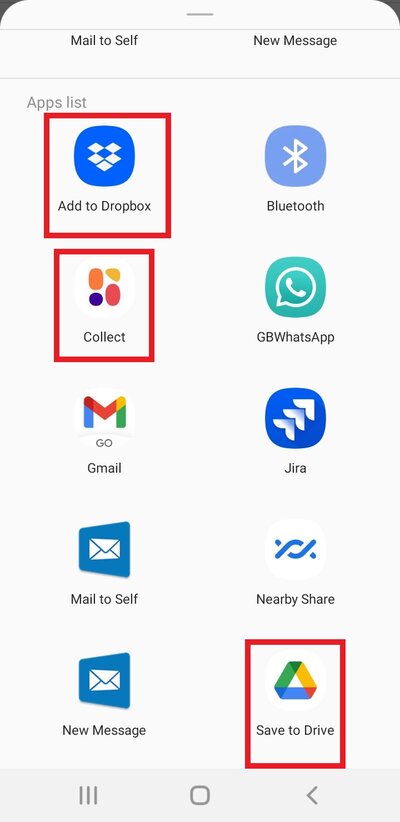
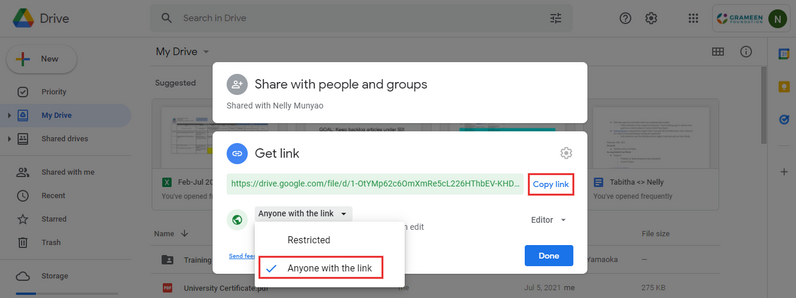
- Make the file public so that anyone on the Internet with this link can view it then copy and send the link to the TaroWorks Support.
- From TaroWorks home page, click Settings.
Comments
0 comments
Please sign in to leave a comment.