
Inventory adjustments are increases or decreases made in inventory to account for theft, loss, breakages, and errors in the amount or number of items received.
They are made to inventory to match an item's actual quantity on-hand in a warehouse. This article describes how to make an inventory adjustment from the TaroWorks Enterprise application in Salesforce.
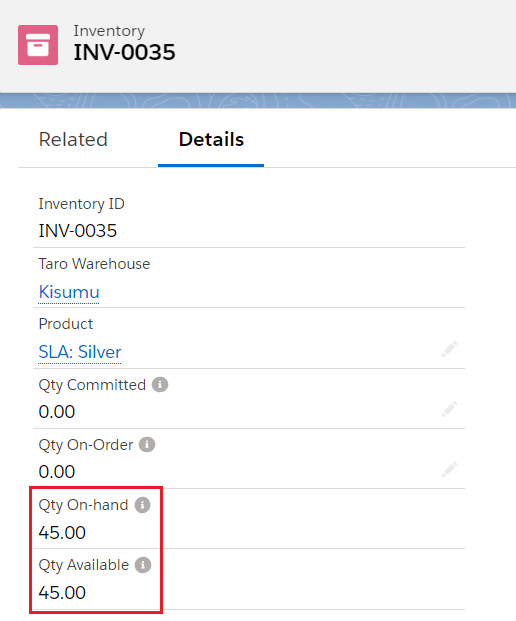
In our Example, we have Inventory for product "SLA: Silver" in "Kisumu" Warehouse that has a current Qty On-Hand of 50. However, 5 of these products have recently been damaged due to a water leakage and we therefore need to perform an inventory adjustment to account for this.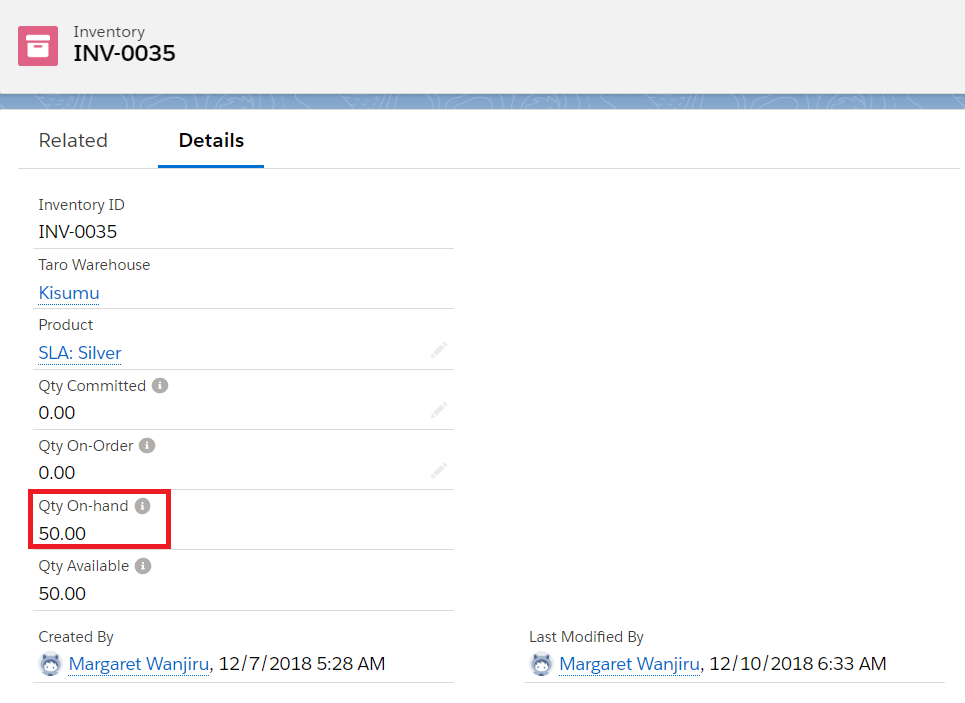
- Go to App launcher and select "TaroWorks Enterprise".
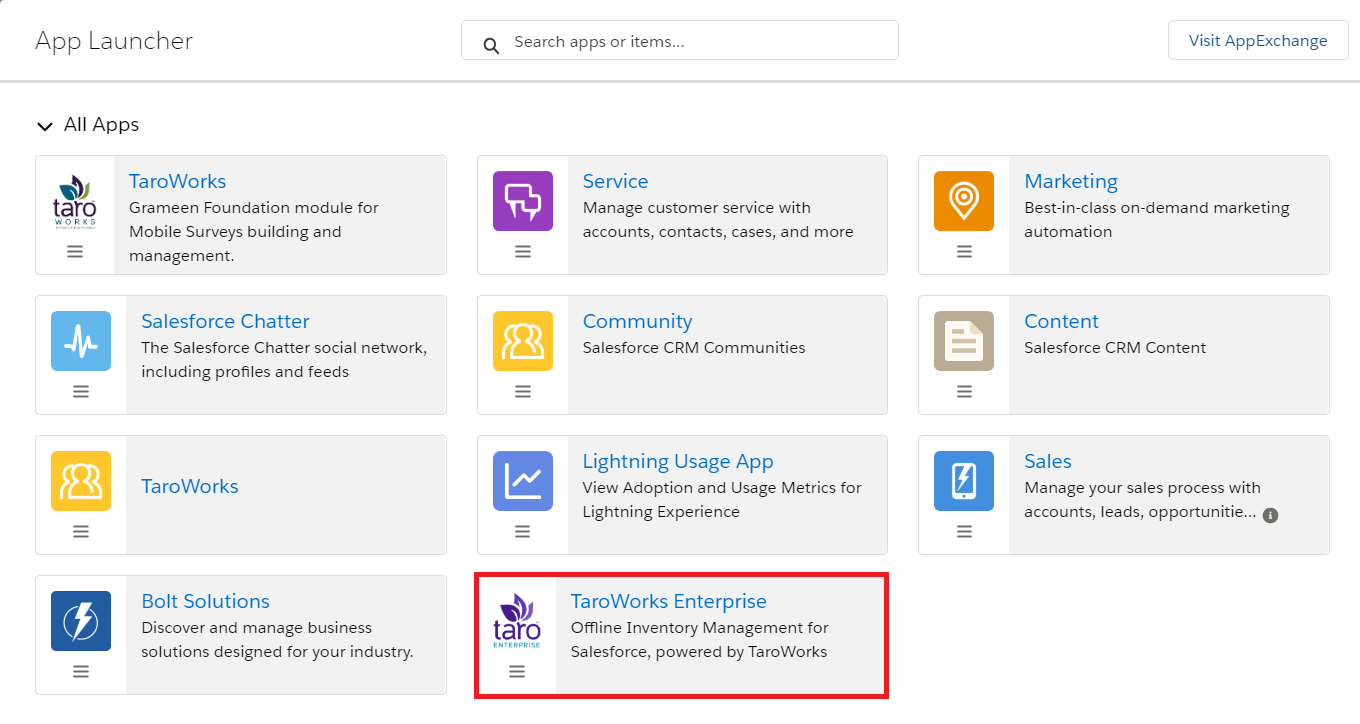
- On the tabs click on Inventory Adjustments.
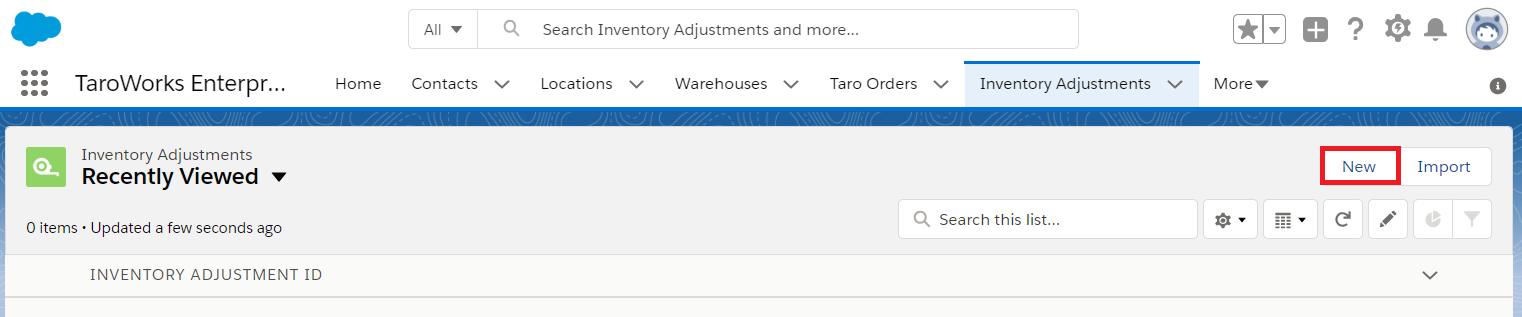
- Click New.
- Select Inventory Adjustment.

- Click Next.
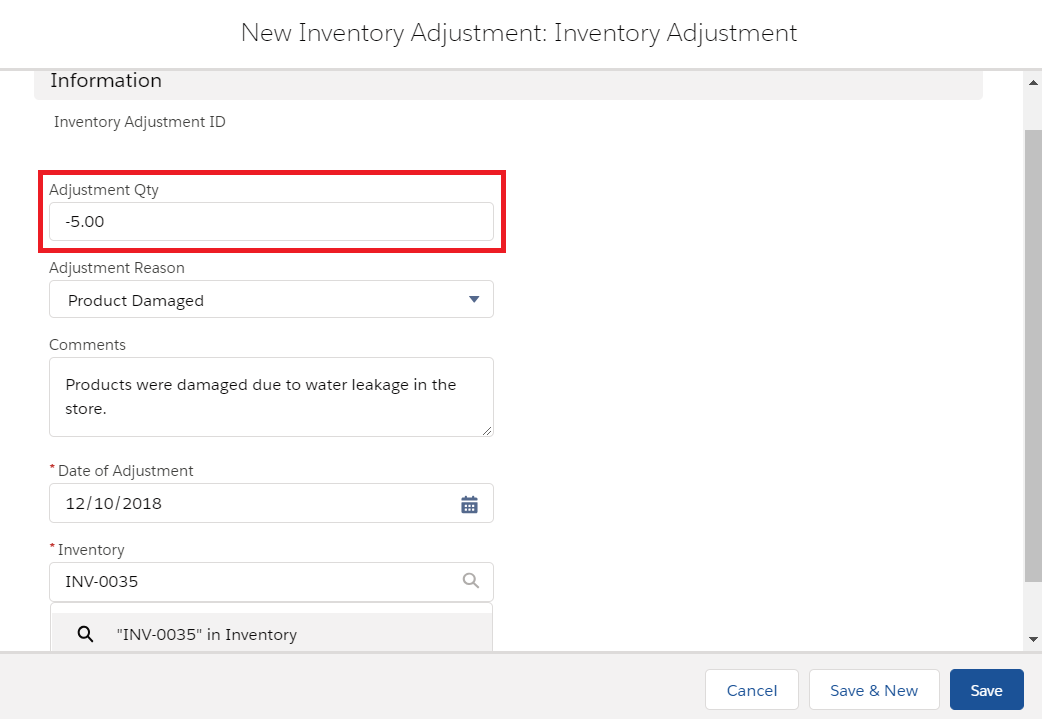
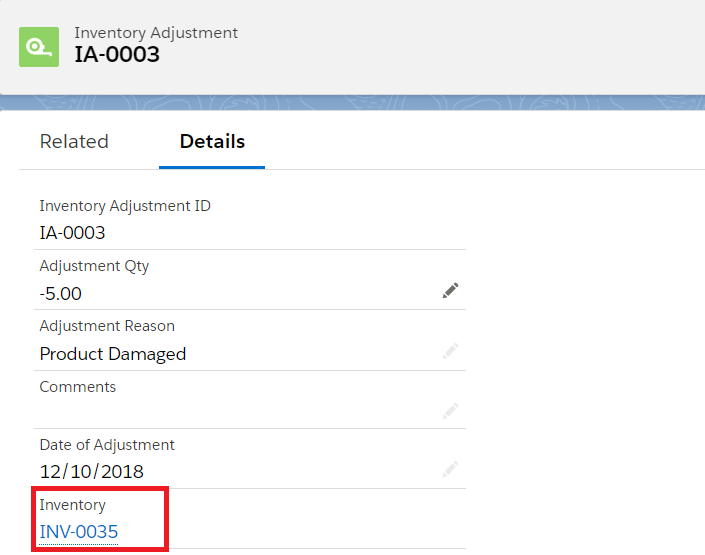
- Enter the Adjustment Quantity. A negative quantity will decrease the Qty On Hand and a positive quantity will increase it. In our case there are 5 items that can no longer be sold, we will put "-5" in order to reduce the Qty On Hand in the system.
- Enter the Date of Adjustment.
- Enter the Inventory. This the ID for the inventory we are adjusting. If you don't know the ID, you can look it up on the Inventory tab., Adjustment Reason and any Comments as shown in the image below and click Save..
- Once saved click on Inventory as shown below to see the inventory levels for the Inventory we just adjusted for Kisumu Warehouse.
- You should see the Inventory for product "SLA: Silver" in "Kisumu" Warehouse has reduced from 50 to 45
Comments
0 comments
Article is closed for comments.