
Introduction
A Transfer Order is used when you want to track inventory movements within the organization. A Transfer Order results in the movement of inventory from a source warehouse to a destination warehouse.
Direct orders enable you to create orders in a status other than Draft. This article will outline how to configure a TaroWorks Job that creates a direct-confirmed Transfer Order upon sync.
Before you begin:
- This article assumes you know how to build TaroWorks Jobs
A. Configuring the Form
1. In the Question Builder Tab, create the following sections and questions.
| Question | Question Type | |
| Section Name: Order Information (Regular Section) | ||
| Q1 | Source Warehouse* | Text |
| Q2 | Source Warehouse ID** | Text |
| Q3 | Source Location ID** | Text |
| Q4 | Destination Warehouse* | Text |
| Q5 | Destination Location ID** | Text |
| Q6 | Destination Warehouse ID** | Text |
| Q7 | Order Type** | Single Select (Transfer Order) |
| Q8 | Direct Order** | Single Select (Yes) |
| Q9 | Date of Order* | Date |
| Q10 | Status** | Single Select (Confirmed) |
| Q11 | Expected Delivery Date* | Date |
| Question | Question Type | |
| Section Name: Order Information - Repeat Section | ||
| Q12 | Product ID** | Text |
| Q13 | Product Name* | Text |
| Q14 | Qty Ordered* | Number |
*Required
**Required and Hidden
2. Add the following dynamic operations to calculate and validate answers to the questions below :
Note: please replace any section names, question names, or picklist values that may be different in your org. If you are new to Dynamic Ops, kindly refer to this article for better understanding and examples.
Q7 Order Type: Sets the Order Type to Transfer order.
Operation : Calculation
Javascript : tw.order_information.order_type.value="Transfer Order";
Q8 Direct Orders: Sets the Direct Order to "Yes"
Operation : Calculation
Javascript : tw.order.direct_orders.value="Yes"
Q10 Status: Sets the Status to a Confirmed.
Operation : Calculation
Javascript : tw.order_information.status.value="Confirmed";
Q11: Expected delivery date must be equal to or later than the order date.
Operation : Validation
Javascript : if (tw.order_information.expected_delivery_date.value < tw.order_information.date_of_order.value) { throw "The Delivery date must be on or after Order date"; }
3. In the Field Mapping tab, configure the following mapping.
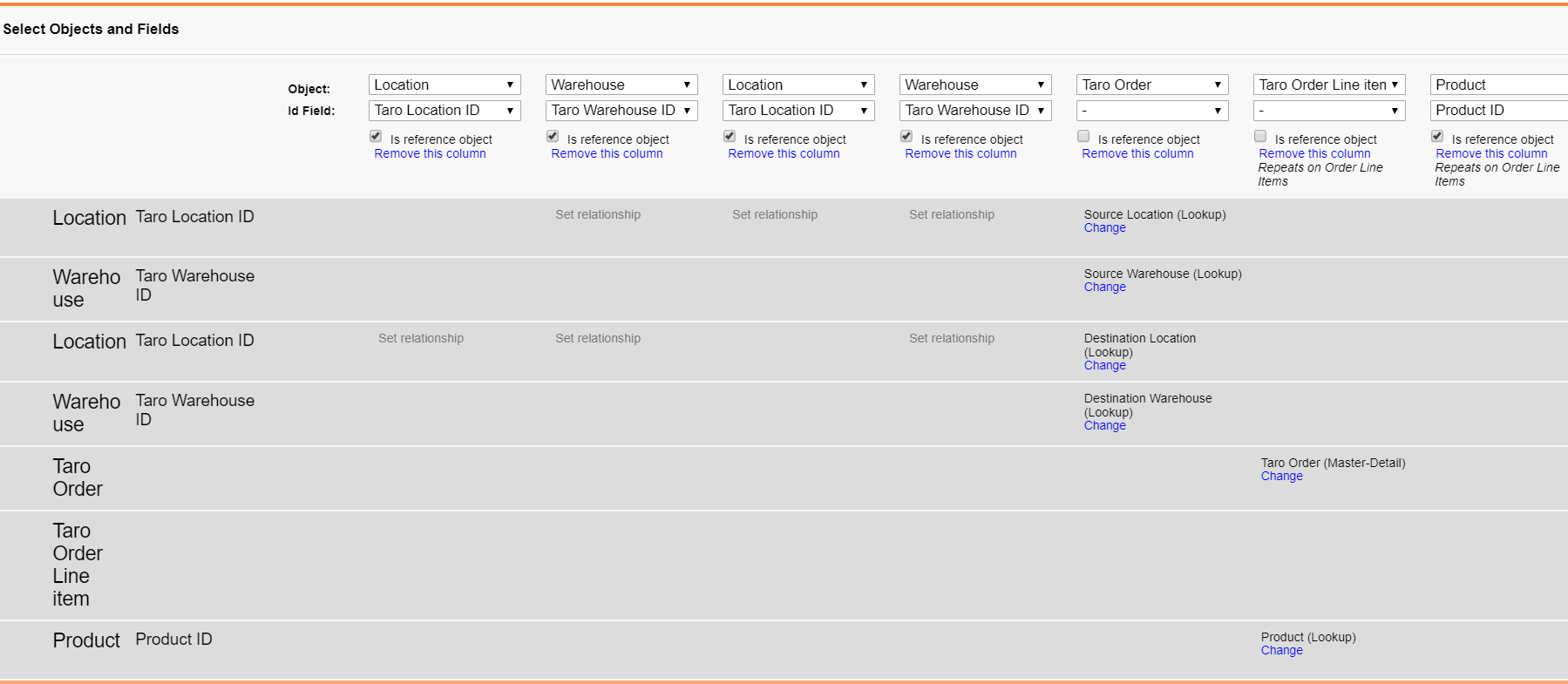
|
|||||||||||||||||||||||||||||||||||||||||||||||||||||||||||||||||||||||||||||||||||||||||||||||||||||||||||||||||||||||||||||||||||
|
||||||||||||||||||||||||||||||||||||||||||||||||||
B. Configuring the Job
1. Configure the following drill-down hierarchies (DDH).
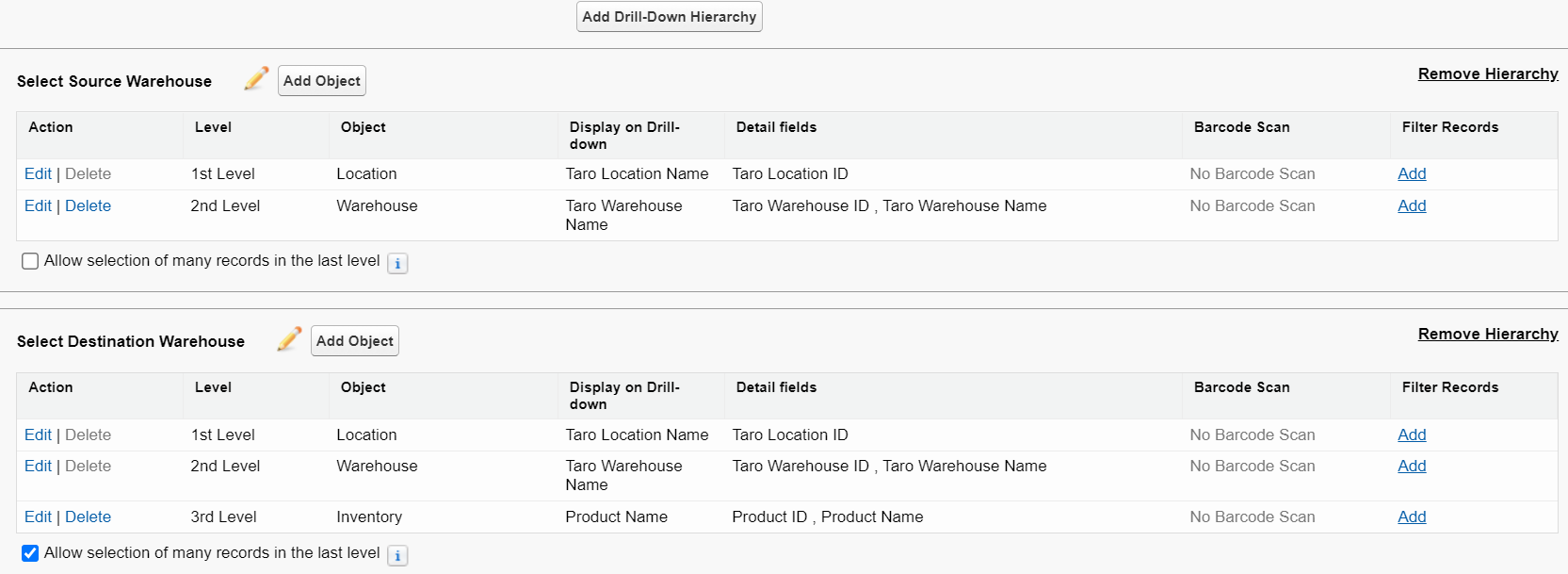
2. Check Allow Mobile User to select multiple records in the last level for the DDH listing inventories.
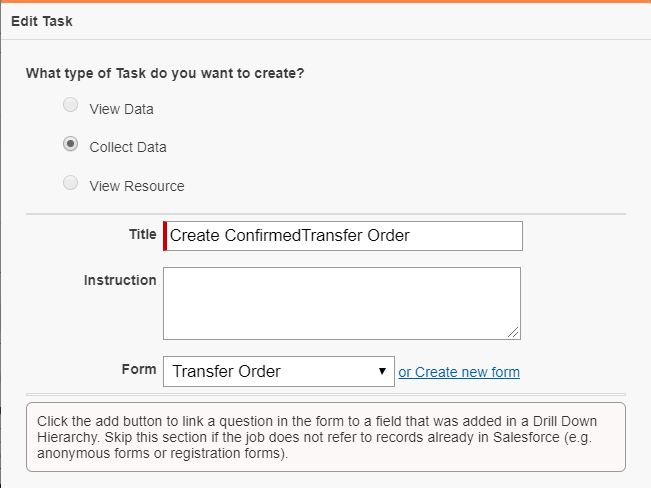
3. Configure the following Task.

4. Click Save, Save the job again and Publish.
NOTE: Always perform extensive testing on any jobs that you create before assigning them to your field staff.
Comments
0 comments
Please sign in to leave a comment.