
Introduction
A Transfer Order is used when you want to track inventory movements within the organization. A Transfer Order results in the movement of inventory from a source warehouse to a destination warehouse.
This articles outlines how to configure the Form & Job that will Ship a Confirmed Transfer Order upon Sync.
Before you begin:
- This article assumes you know how to build TaroWorks Jobs
A. Configuring the Form
Question Builder Tab
In the Question Builder Tab, create the following Sections and Questions:
| Question | Question Type | |
| Section Name: Order Details - Regular Section | ||
| Q1 | Order ID** | Text |
| Q2 | Expected Delivery Date | Text |
| Q3 | Shipment Date* | Date |
| Question | Question Type | |
| Section Name: Review Request - Repeat Section | ||
| Q4 | Order Line Item ID** | Text |
| Q5 | Product Name | Text |
| Q6 | Qty Ordered* | Number |
| Q7 | Qty Shipped* | Number |
| Q8 | Ship or Cancel | Picklist (Ship, Cancel) |
| Question | Question Type | |
| Section Name: Additional Shipments - Regular Section | ||
| Q9 | Expecting Additional Shipments | Picklist (Yes, No) |
| Question | Question Type | |
| Section Name: Shipping Information - Repeat Section | ||
| Q10 | Order Line Item ID** | Text |
| Q11 | Product Name | Text |
| Q12 | Qty Ordered* | Number |
| Q13 | Qty Shipped | Number |
| Q14 | Status | Picklist (Shipped, Confirmed, Cancelled) |
| Q15 | Shorted | Picklist (Yes, No) |
*Required
**Required and Hidden
Dynamic Operations
If you are new to Dynamic Operations, kindly refer to this article for better understanding and examples.
Q13 Qty Shipped: Sets to the value that was inputted for Qty Shipped.
Operation : Calculation
Javascript : var i = tw.shipping_information.currentIndex; var status = tw.review_request[i].ship_or_cancel.value; if (status == "Ship") { tw.shipping_information.current.qty_shipped.value = tw.review_request[i].qty_ordered.value; }
Q14 Status: Sets the status of the Taro Order Line Item depending on whether it has been cancelled or there are more shipments expected.
Operation : Calculation
Javascript : var i = tw.shipping_information.currentIndex; var status = "Cancelled"; var additional_shipments = tw.additional_shipments.expecting_additional_shipments.value; var ship_cancel = tw.review_request[i].ship_or_cancel.value; if (ship_cancel == "Ship") { if (additional_shipments == "No") { status = "Shipped"; } else { status = "Confirmed"; } } tw.shipping_information.current.status.value = status;
Q15 Shorted: Sets this flag to true if the Qty Ordered is not equal to Qty Shipped and there are no more Shipments expected.
Operation : Calculation
Javascript : var i = tw.shipping_information.currentIndex; var additional_shipments = tw.additional_shipments.expecting_additional_shipments.value; var shorted = "No"; if (tw.review_request[i].qty_ordered.value < tw.review_request[i].qty_shipped.value && additional_shipments == "No") { shorted = "Yes"; } tw.shipping_information.current.shorted.value = shorted;
Field Mapping Tab
The objects and relationships should resemble the image below: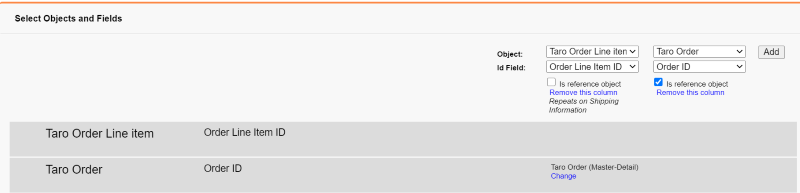
|
Question |
Taro Order Line Item |
Taro Order |
|
|
Section Name: Order Details - Regular Section
|
|||
|
Q1 |
Order ID |
Order ID | |
|
Q2 |
Expected Delivery Date |
||
|
Q3 |
Shipment Date |
Last Shipment Date | |
|
Section Name: Review Request - Repeat Section |
|||
|
Q4 |
Order Line Item ID |
||
|
Q5 |
Product Name |
||
|
Q6 |
Qty Ordered |
||
|
Q7 |
Qty Shipped |
||
|
Q8 |
Ship or Cancel |
||
|
Section Name: Additional Shipments - Regular Section |
|||
|
Q9 |
Expecting Additional Shipments |
||
|
Section Name: Shipping Information - Repeat Section |
|||
|
Q10 |
Order Line Item ID |
Order Line Item ID | |
|
Q11 |
Product Name |
||
|
Q12 |
Qty Ordered |
||
|
Q13 |
Qty Shipped |
Last Qty Shipped | |
|
Q14 |
Status |
Status | |
|
Q15 |
Shorted |
Shorted Shipment | |
B. Configuring the Job
-
- Add a Drill Down Hierarchy with the objects and Fields as Follows:
- Check "Allow Mobile User to select multiple records in the last level"
- Set up filters on the Taro Order and Taro Order Line Item level of the Drill Down Hierarchy to show only in a Confirmed status
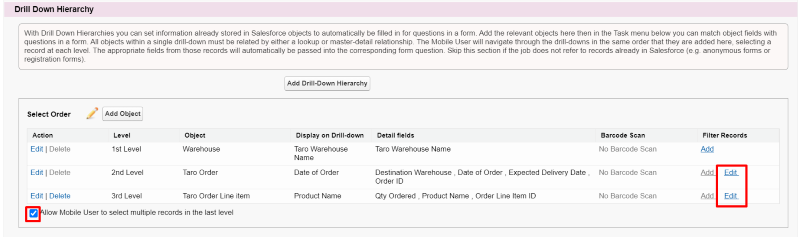
- Create a new Collect Data Task as shown below and link the task to the form you've created above with the following Task Mapping
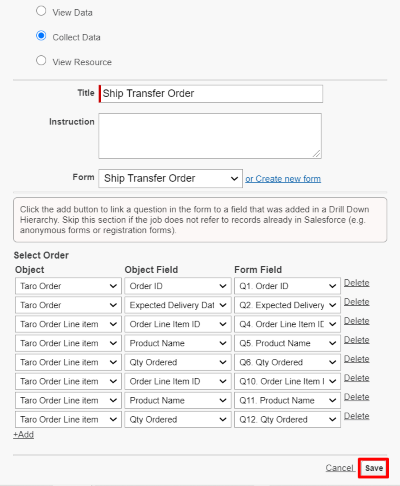
- Click Save, Save the job again and Publish
- Add a Drill Down Hierarchy with the objects and Fields as Follows:
NOTE: Always perform extensive testing on any jobs that you create before assigning them to your field staff.
Comments
0 comments
Please sign in to leave a comment.