
Similar to TaroWorks licensing, a TaroWorks Enterprise license is required for any user who needs access to TaroWorks Enterprise in the Salesforce back-end, or on a mobile device. You will need to 1) assign licenses when you start using TaroWorks, and 2) manage licenses as roles shift within the organization, by granting and/or revoking licenses. Here is more information about TaroWorks licensing in TaroWorks 3.0 and beyond.
SANDBOX: If you've created a sandbox for your organization from a production environment with TaroWorks you DO NOT need licenses for the sandbox and these steps won't apply. However you may need to create a partner account and add mobile users.
Granting a User a TaroWorks Enterprise License
- Click Setup.
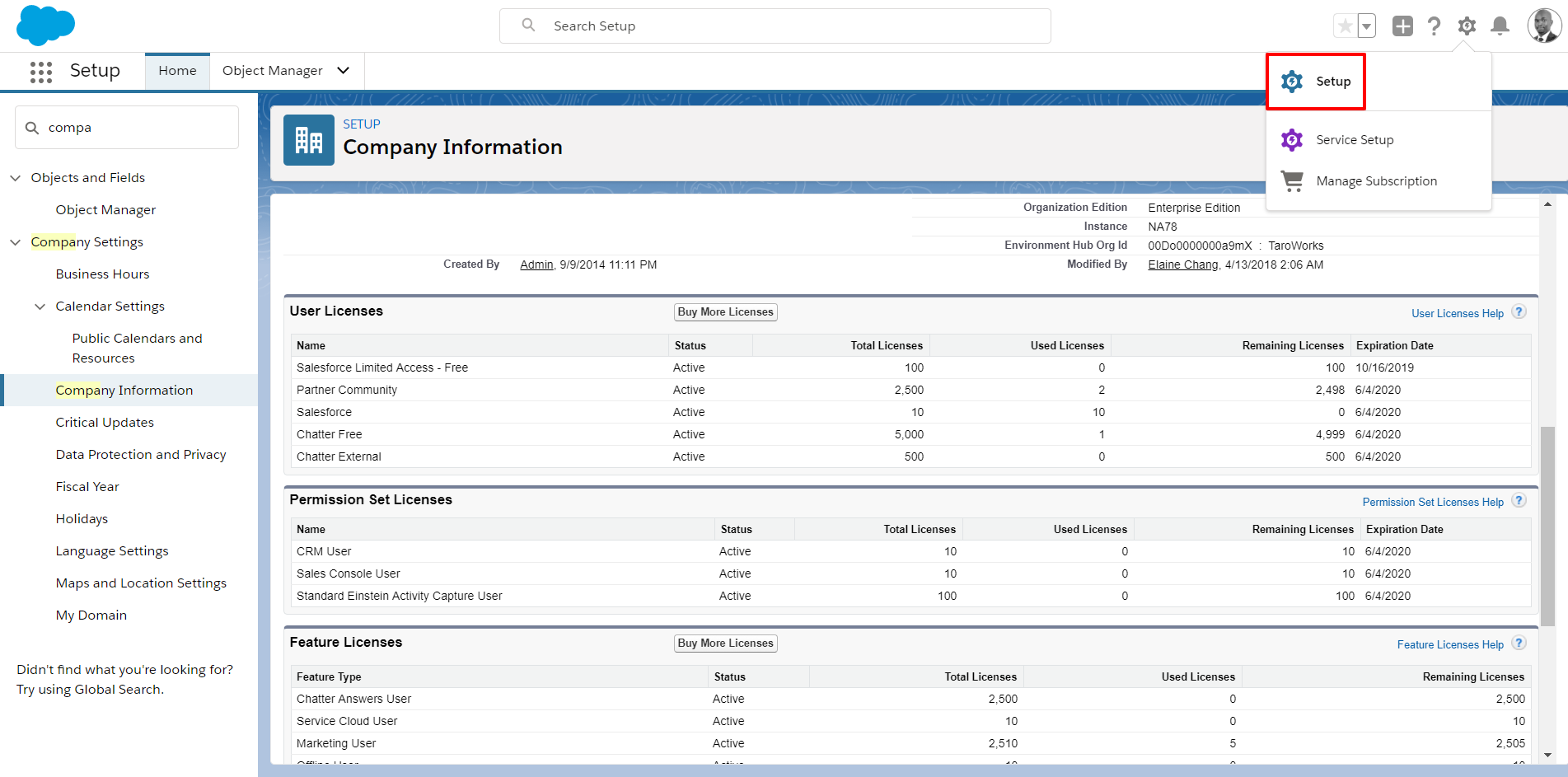 For lightning follow above step, for Classic follow the steps below.
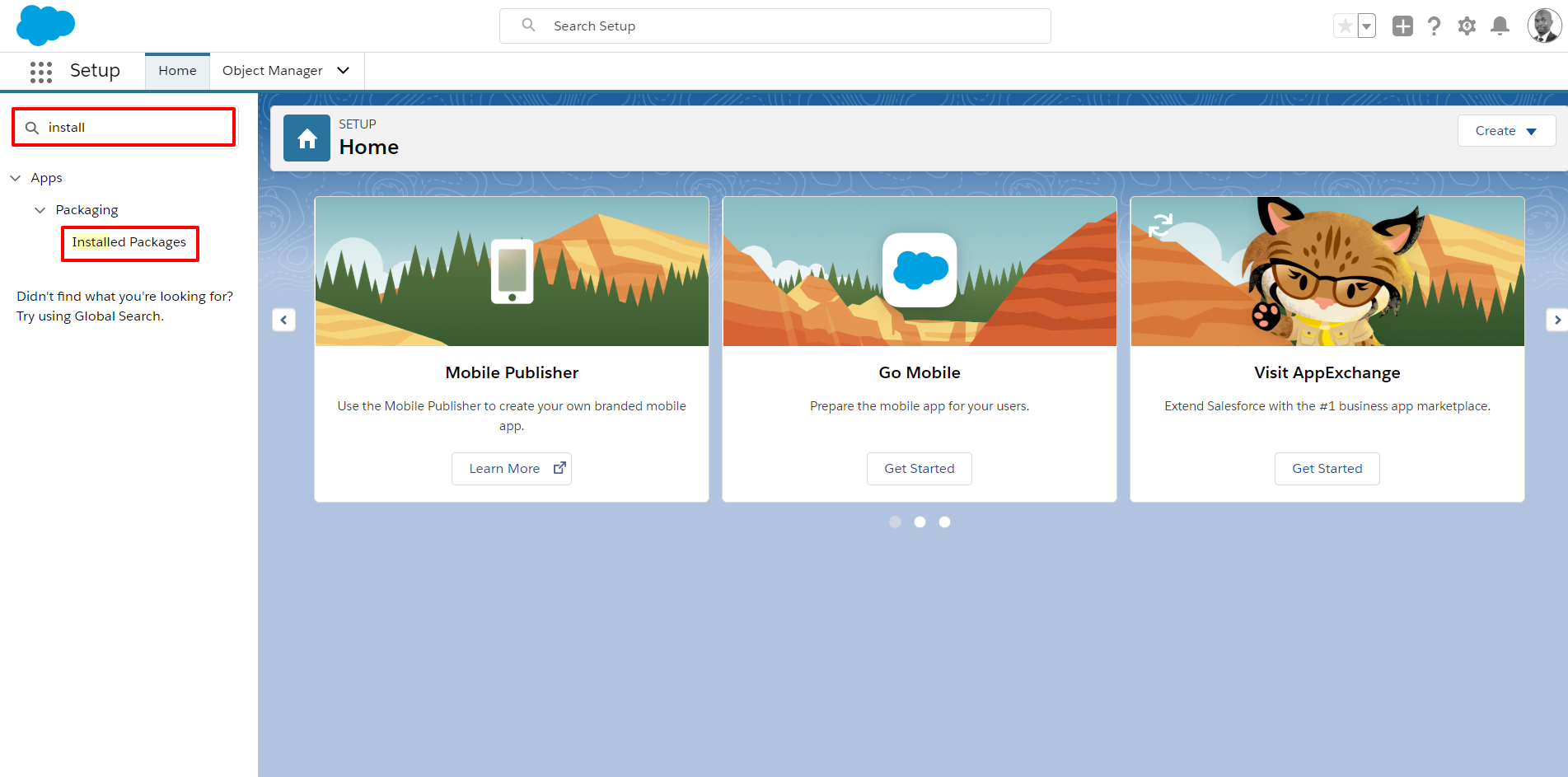
 - Navigate to Quick Find Search Box and search for Installed Packages.
Tip: Type 'Install' in the search bar above the menu.
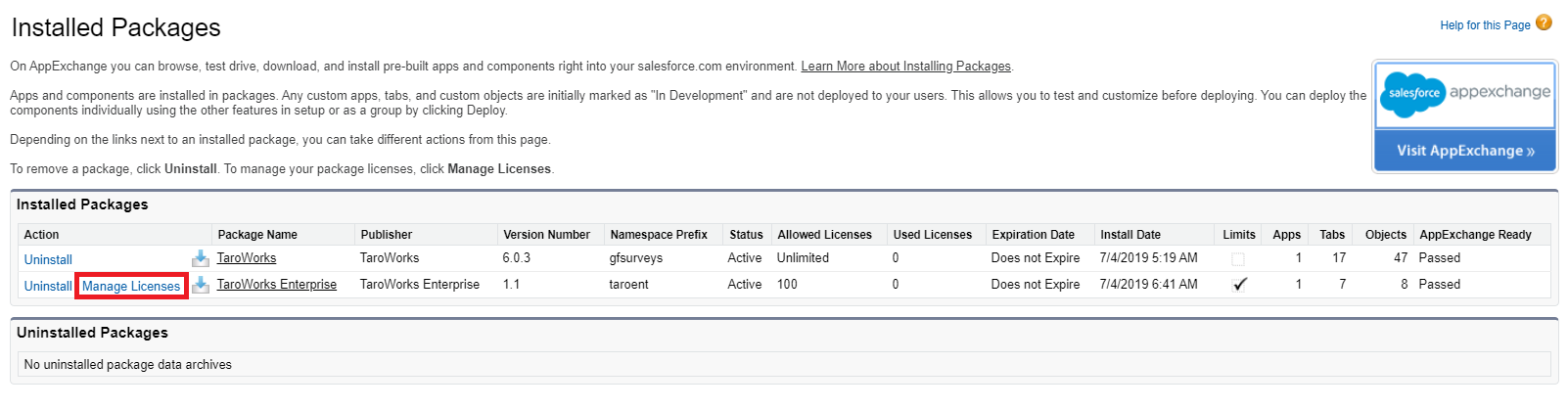
- Click Manage Licenses next to the package name TaroWorks Enterprise.
-
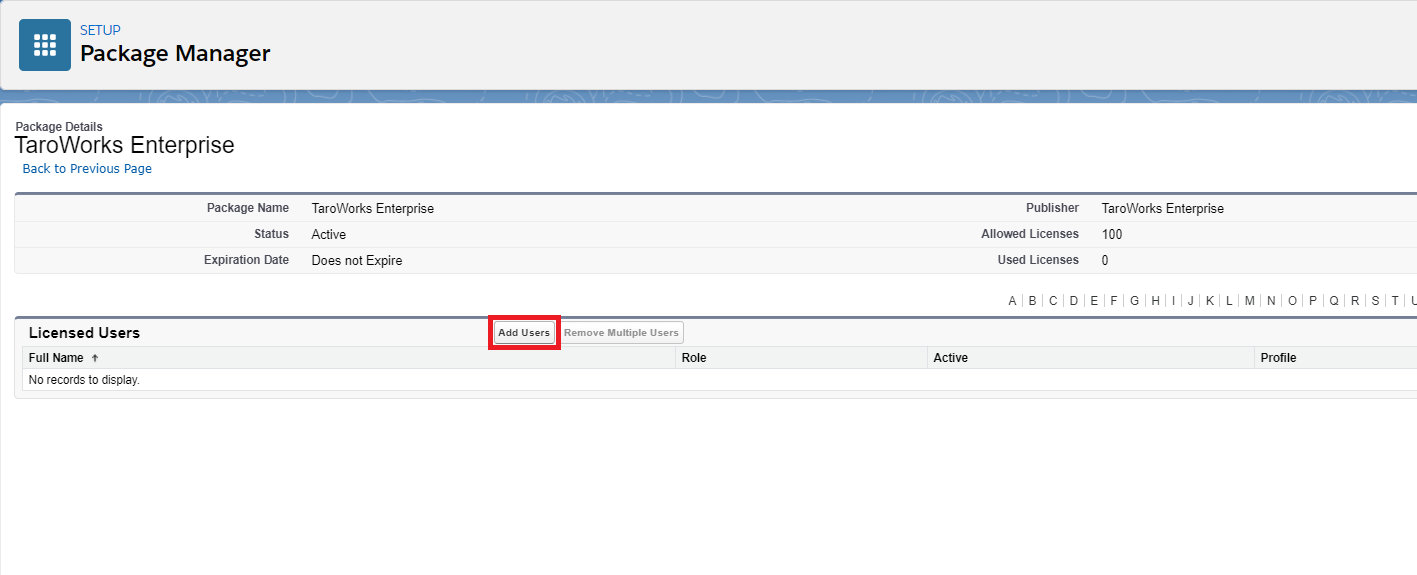
Click Add Users button.
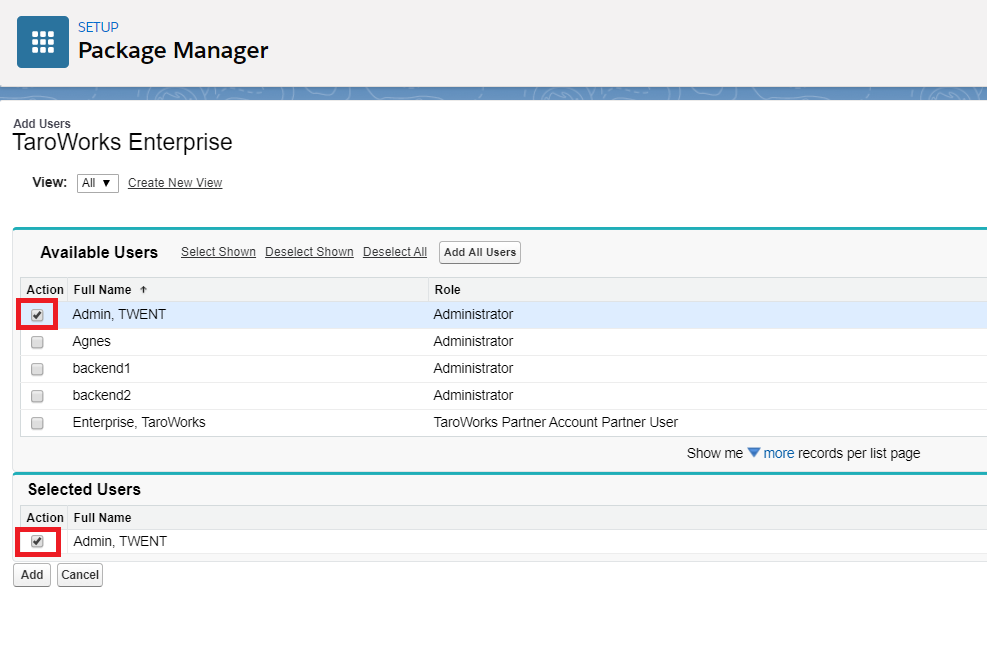
- Check the user record for which you'd like to add a TaroWorks Enterprise License and click the Add button.
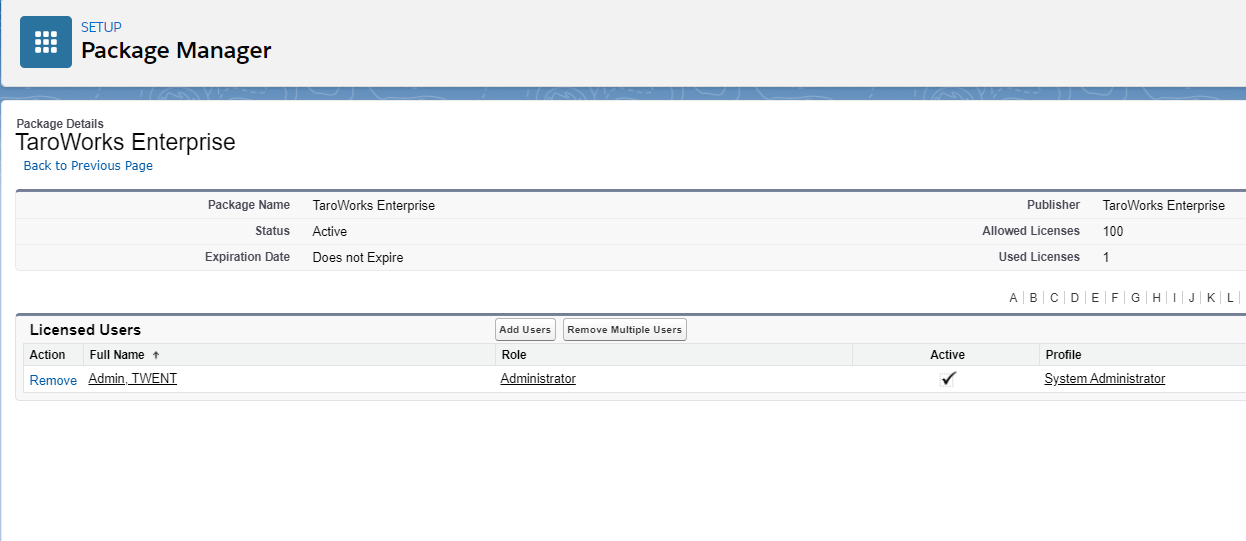
- User will be granted a TaroWorks Enterprise License.
Revoking a User a TaroWorks Enterprise License
- Click Setup.
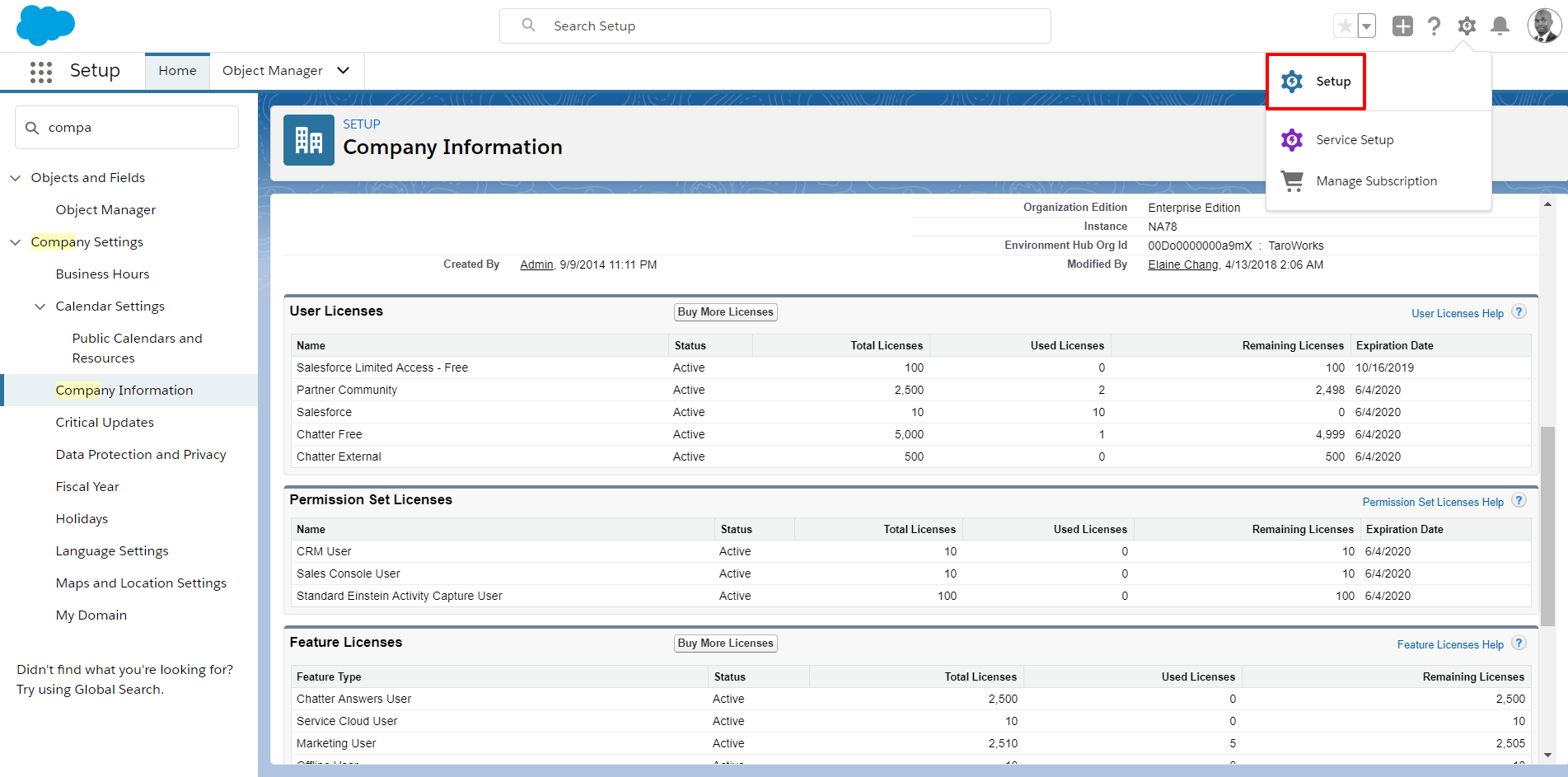 For Lightning use above, for Classic use screenshots below.
 - Navigate to App Setup and click the option Installed Packages.
Tip: Type 'Install' in the search bar above the menu.
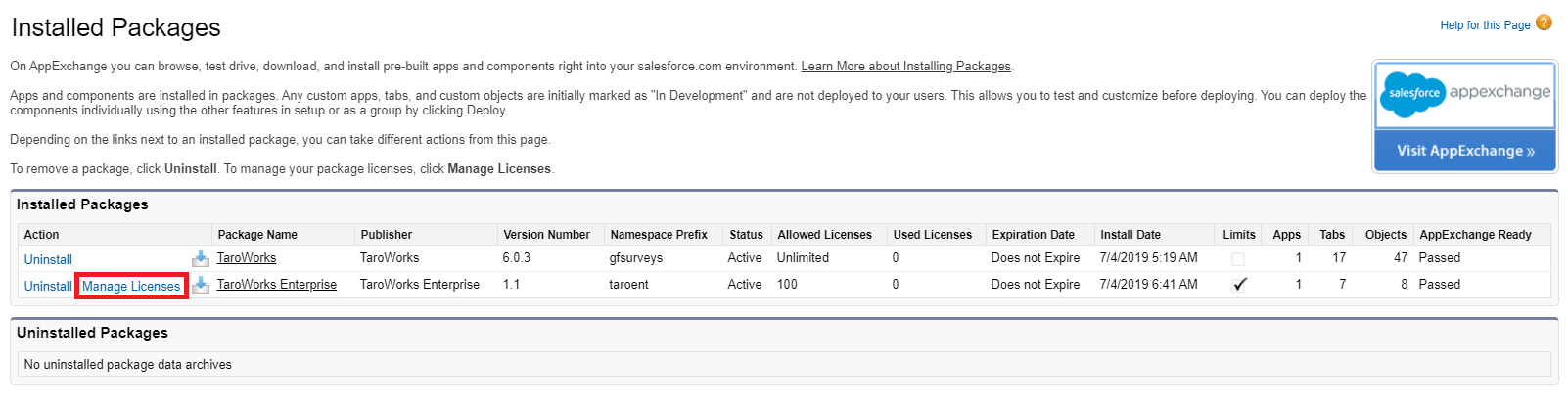
- Click Manage Licenses next to the package name TaroWorks Enterprise.
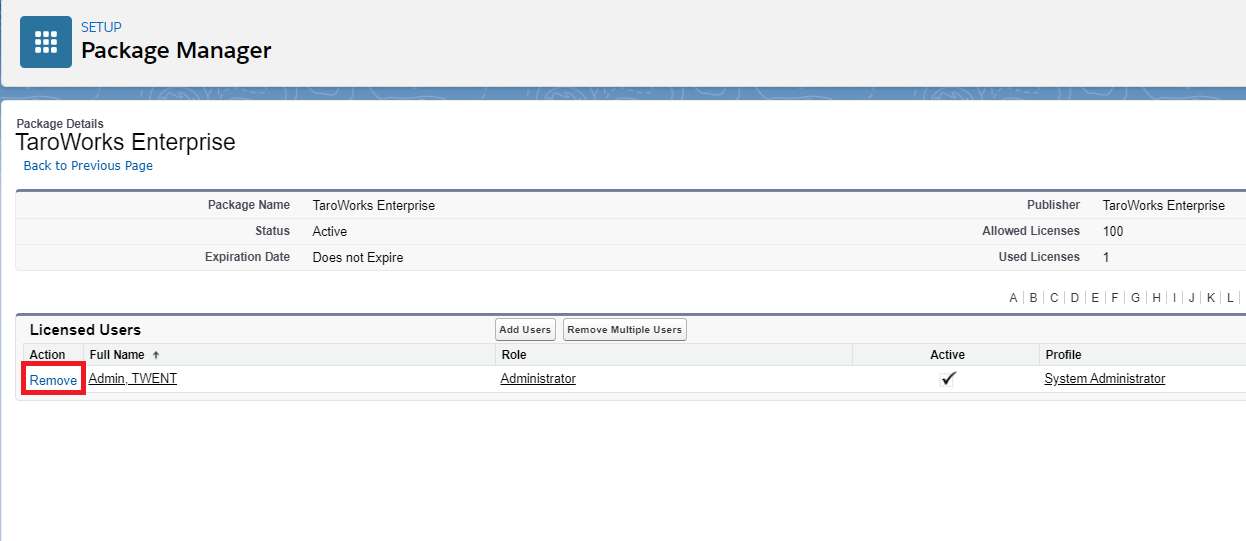
- Click Remove for all user for which you want to remove the TaroWorks Enterprise License.
- Click OK.

Comments
0 comments
Please sign in to leave a comment.